How to Track Changes in Article Writing Software
Last updated: October 28, 2026
Quick Answer: In article writing software, turn on tracked changes before you edit, use comments for reasons, and use version history for whole-draft comparisons.
In short: tracked changes let you see every insertion, deletion, and formatting edit in an article draft so you can review revisions without guessing what changed. This guide to How to Track Changes in Article Writing Software explains the core workflow for seeing, comparing, and approving edits in a draft.
Key Takeaways
- Tracked changes display edits as markup, not silent replacement.
- They record edit actions instead of overwriting text right away.
- Turn on markup before the first sentence so the revision trail stays clear.
- Use version history for comparing whole-draft states, not just single edits.
If you are working in How to Track Changes in Article Writing Software, the practical job is simple: turn on tracked changes, make edits in markup, compare versions when needed, and use comments to explain why something changed. That is often the quickest way to review a draft without losing the original wording. It is also a clear way to hand off a draft to an editor, because the markup shows what changed line by line.
What tracked changes actually show in article writing software
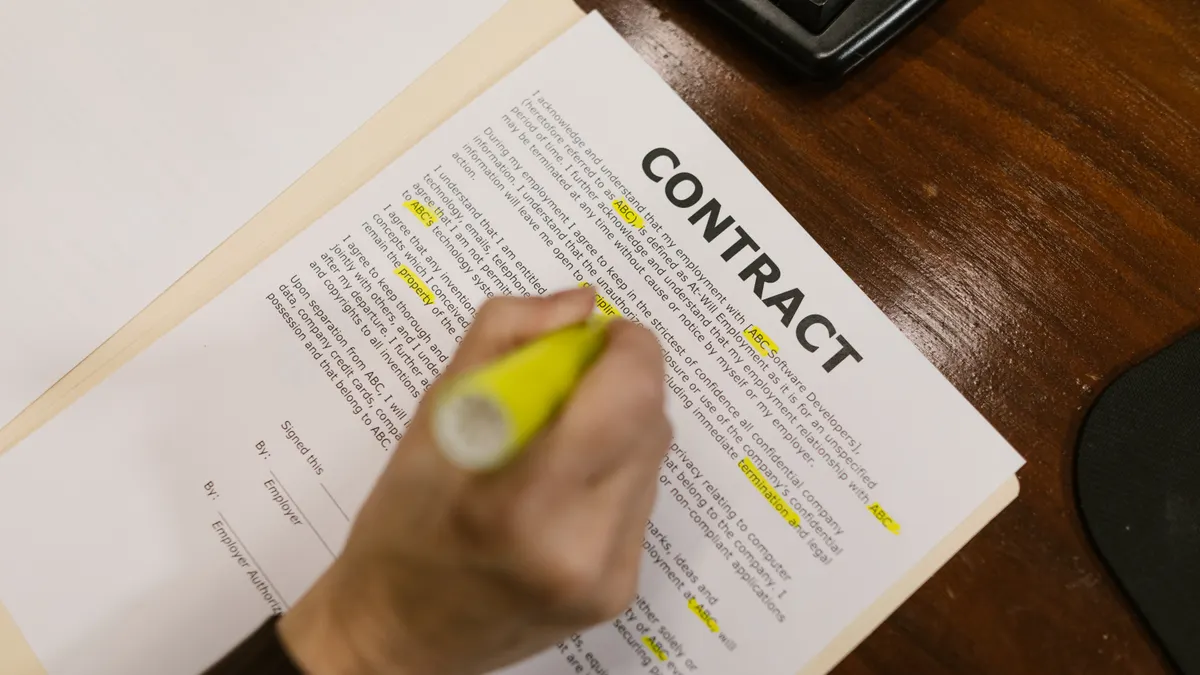
Tracked changes show edits as markup instead of silently replacing text. In most writing tools, that means insertions are underlined or colored, deletions are struck through, and moved text may appear as separate change blocks. The result is a visible revision trail you can inspect before accepting or rejecting anything.
This is not the same as version history. Version history saves snapshots of the whole document, often at different times. Tracked changes shows what changed inside the current draft. If you are choosing only one review method for a single pass, tracked changes is the more precise tool because it points to the exact sentence, word, or punctuation mark that moved.
That matters when a draft has a lot of small edits. A headline change, a swapped verb, or a deleted clause can alter meaning even if the paragraph still reads well. Tracked changes makes those micro-edits visible. It is especially useful in article writing software that supports comments, because the markup and the note sit next to each other instead of in separate systems.
One honest limit: tracked changes can get noisy in long article drafts. A 1,500-word piece with dozens of line edits may become harder to read if every tiny fix stays visible. In that case, the better move is to group related edits, then review them in chunks rather than trying to inspect every keystroke one by one.
How do tracked changes work in writing software?
Tracked changes work by recording edit actions instead of overwriting text immediately. Most editors mark additions, deletions, replacements, and formatting changes as separate events, so the draft keeps both the current text and the edit trail.
The basic review model is the same across many tools, even if the buttons differ:
-
Open the draft and turn on the review or suggestion mode.
You should see a status indicator such as “Track Changes,” “Suggesting,” or “Review.” Once that is on, new edits stop disappearing into the text. -
Make one edit at a time in the live document.
Added words usually appear highlighted; removed words often remain visible with a line through them. A clear markup trail means the software is recording your actions, not replacing the paragraph outright. -
Add a comment beside any edit that needs explanation.
Most article writing software places a note in the margin or side panel. That is where you explain a rewriten headline, a cut paragraph, or a changed claim. -
Use accept or reject controls for each change.
Accepting folds the edit into the draft. Rejecting restores the previous wording. When this works, the draft becomes clean without you retyping the whole section. -
Save a version snapshot before major review rounds.
A snapshot gives you a rollback point if a batch of edits goes the wrong way. In tools with version history, this is usually one click in the file menu or document history panel.
The trade-off is speed versus control. Track changes is slower than plain typing, but it gives you a review record that plain overwrite mode cannot. If the draft is only for your own notes and you do not need a visible audit trail, plain editing is faster.
For a broader editing workflow, the hub on article writing SaaS editing can sit above this page; this article stays focused on the mechanics of change visibility and review.
Turn on markup before you touch the wording
Turn on markup before you edit the first sentence, because the first untracked change is the one that creates confusion later. If the software has a review toolbar, switch to tracked mode before you start revising a draft of any meaningful length, especially one over 800 words.
The sequence matters. If you edit first and enable tracking later, the opening changes may disappear into the final text. That breaks the review trail and forces the next reader to guess what happened. In a 10-paragraph article, one missing opening edit can change the entire meaning of the revision pass.
A clean setup usually looks like this:
- Open the article draft.
- Find the review or markup toggle.
- Confirm the interface shows tracked mode, not plain edit mode.
- Make a small test change, such as adding one word, and look for visible markup.
- Undo the test if needed, then proceed with the real edit.
The visible result depends on the software, but the sign of success is the same: the draft shows markup before you make any substantive changes. That means deletions are preserved, additions are flagged, and reviewers can tell what is new.
A common mistake is to rely on memory and “just know” which lines changed. That fails as soon as a draft has three or more reviewers or a second round of edits. Markup exists because memory is weak and article drafts get long. The cleaner the markup, the easier it is to review a 2,000-word piece without re-reading everything from scratch.
Use version history when you need the whole draft back
Use version history when you need to compare whole-draft states, not just individual edits. Version history is the safety net that stores earlier saves, usually by timestamp, so you can return to a previous draft if a round of changes goes too far.
This is the right tool when the problem is bigger than a sentence. If the intro was rewritten, the subheads changed, and the conclusion lost its point, tracked changes alone can be tedious. Version history lets you jump to a prior state and inspect the document as a complete version instead of reconstructing it from markup.
Here is the practical way to use it:
-
Open the document history or file versions panel.
You should see saved snapshots by time, author, or revision label. A list view means the software has stored more than one milestone. -
Pick the closest stable draft before the bad edit.
The right choice is usually the last version before the structure changed, not the oldest version in the file. -
Compare the versions side by side if the software allows it.
A split view makes it easier to spot paragraph moves, section cuts, and changed headlines. -
Restore or copy only the needed parts.
In many cases, you do not want to overwrite the current draft completely; you only want one paragraph, one line, or one headline from the older version.
The drawback is that version history is coarse. It can show that the article changed between Tuesday and Wednesday, but it may not explain each edit. That is why version history and tracked changes belong together. One shows the roadmap; the other shows the street-level route.
If your software has no clear version history, you need to be more disciplined about saving milestones. Name drafts in a way that means something, such as “intro fixed” or “fact check pass,” instead of leaving five nearly identical files in a folder.
Compare draft versions without losing the thread
Compare draft versions by lining up two snapshots and checking structure first, then wording, then formatting. That order matters because a line-by-line comparison can hide the larger problem if you start with punctuation.
A clean comparison usually follows this order:
-
Check headings and section order first.
If the H2s moved, the article may have a structural problem before it has a copy problem. -
Check paragraph additions and removals next.
A missing paragraph can change argument flow more than a dozen word swaps. -
Check wording at sentence level last.
This is where tracked changes and markup do their best work, because they show exact insertions and deletions. -
Check formatting only after content.
A font switch or bullet style change matters, but it should not distract from the actual revision.
Many article writing tools present this as a red-and-green diff, a split pane, or a revision overlay. The display style is less important than the signal: you should be able to tell what moved, what disappeared, and what stayed the same. In a 1,200-word article, that is often the difference between a usable review and a confusing one.
The trade-off here is fidelity versus readability. A full comparison can be detailed, which is useful when a legal or technical claim changes, but overkill when you only want to clean up a title or fix a typo. If you only need to verify one paragraph, compare that paragraph alone instead of opening the whole document and drowning in noise.
Comments and edits: how to keep the review readable
Comments and edits work best when they do different jobs: edits change the text, and comments explain the reason. If both are used for the same job, the review gets cluttered fast.
Think of comments as the note next to the markup. Use the edit for the actual wording change and the comment for the rationale, question, or instruction. For example, if a sentence is shortened because it repeats the point above it, the edit removes the repetition and the comment can say why the cut was made. That keeps the draft itself clean while preserving context for the next reviewer.
This matters in article writing software because comments can pile up in a 20-comment sidebar very quickly. Keep comments short, specific, and attached to one issue at a time. One comment should answer one question, not five.
A few clean habits help:
- Comment on meaning, not on obvious typos.
- Use tracked changes for wording, comments for decisions.
- Resolve comments once the related edit is accepted or rejected.
- Avoid explaining the same point in both the comment and the revision text.
The honest limitation is that comments are not a substitute for a real edit trail. A comment can say “tighten this” or “verify the claim,” but only the markup shows exactly what changed. If the document needs a full audit trail, rely on tracked changes first and comments second.
Common mistakes that make change tracking useless
Tracked changes become useless when the review trail is mixed, hidden, or too large to read. The main failure is not the software; it is how the draft is handled.
The most common mistakes are easy to spot:
-
Editing with tracking off.
Cost: the revision trail breaks, and no one can tell what changed.
Do instead: confirm tracked mode before the first edit. -
Accepting everything too early.
Cost: a bad revision gets baked into the draft and may be hard to unwind.
Do instead: review each change or each section before clearing markup. -
Using comments as if they were edits.
Cost: the draft still contains the old wording, so the text and the note disagree.
Do instead: make the text change in markup and use the comment only for the reason. -
Relying on one huge comparison after many rounds.
Cost: the diff becomes harder to read than the draft itself.
Do instead: save smaller version checkpoints, such as after the intro, the body, and the final pass. -
Ignoring formatting changes.
Cost: a heading level, bullet style, or link change can quietly alter the reading structure.
Do instead: review formatting in the same pass as wording, even if it takes a few extra minutes.
The clearest habit is to keep the visible trail as clear as the article itself. If the markup looks tangled in a 1,000-word draft, the review process will be tangled too.
The cleanest workflow for article reviews
The cleanest workflow is to combine tracked changes, version history, comments, and change comparison in that order. Start with markup for sentence-level edits, use comments for context, save a version before a major pass, and compare versions when the whole draft shifts.
That sequence keeps each tool in its lane. Tracked changes shows what changed now. Version history gives you an earlier copy. Comments explain why a change was made. Comparison shows whether the draft still holds together after multiple edits. Together, they cover the review cycle without forcing you to guess.
This workflow is worth using when the draft is long enough that a single glance is not enough. A 600-word news-style article may need only one pass. A 2,000-word feature, a reference guide, or a multi-section post often needs the full set of tools. The more moving parts in the draft, the more valuable a visible trail becomes.
It is not the right setup when you want to rewrite privately and publish a clean final text with no review record. In that case, the extra markup may feel heavy. But for article review, especially when more than one person needs to approve changes, the extra visibility is the point.
For a deeper look at the surrounding workflow, the article writing SaaS editing hub can handle the broader system. This page stays on the mechanics of seeing changes, understanding them, and keeping the draft readable.
How do tracked changes work in writing software?
Tracked changes record edits as visible markup instead of silently replacing text. Insertions, deletions, and sometimes formatting changes appear in the draft so a reviewer can see exactly what changed. In most tools, you then accept or reject each change one by one, which keeps the article reviewable after a 1,500-word pass.
Can I compare two draft versions?
Yes, if the software has version history or a compare view. A good comparison shows more than just the final text; it highlights what was added, removed, or moved between two saved versions. That is useful when the draft changed across several rounds and the markup became too dense to read easily.
How do comments and edits work together?
Comments explain the reason for a change, and edits change the actual wording. That split keeps the article readable because the note stays outside the sentence while the revision appears in the sentence itself. If a draft has both, a reviewer can understand the decision without digging through a long sidebar.
References
- U.S. General Services Administration, Section 508
- Microsoft Support: Use Track Changes
- Google Docs Editors Help: Suggest edits
Drafted with AI; not yet reviewed by a person.